
Local media platform for Windows
Your own MediaCenter for music, radio, video and TV.
OmniStream runs on a Windows PC or server in your own network. After that you open everything through the browser: your music collection, internet radio, your own videos, podcasts, and live TV via your own subscription — with user profiles and PIN protection.
Only your own, legal subscription. OmniStream only supports legal TV services you have a subscription to yourself — Odido, Ziggo, NPO and KPN, or via an M3U playlist or Xtream Codes almost any other provider. We do not supply television, films or music ourselves, and we offer no illegal streams or media boxes.
Free to download and try. A licence for the paid features costs € 5,99 per month, € 24,99 per six months or € 35,99 per year — view the licences.
In active development. Improvements are added regularly, but you may encounter bugs, and parts that depend on third-party services can stop working. So please try the free version on your own equipment first, before buying a licence.
- Your own network
- one central installation, reachable from phone, tablet, laptop and TV browser
- Legal sources
- music, radio, videos, podcasts and live TV in one program
- Family-proof
- profiles, permissions, PIN login and a kids mode per user
- No keyboard
- No separate apps
- No technical dashboards
Just control your media, TV and recordings
from the couch with a single mouse.
Real screenshots
Your whole media collection, in one program.
Music, internet radio, your own videos and live TV from your own subscription — all from the same browser, on every device in the house.
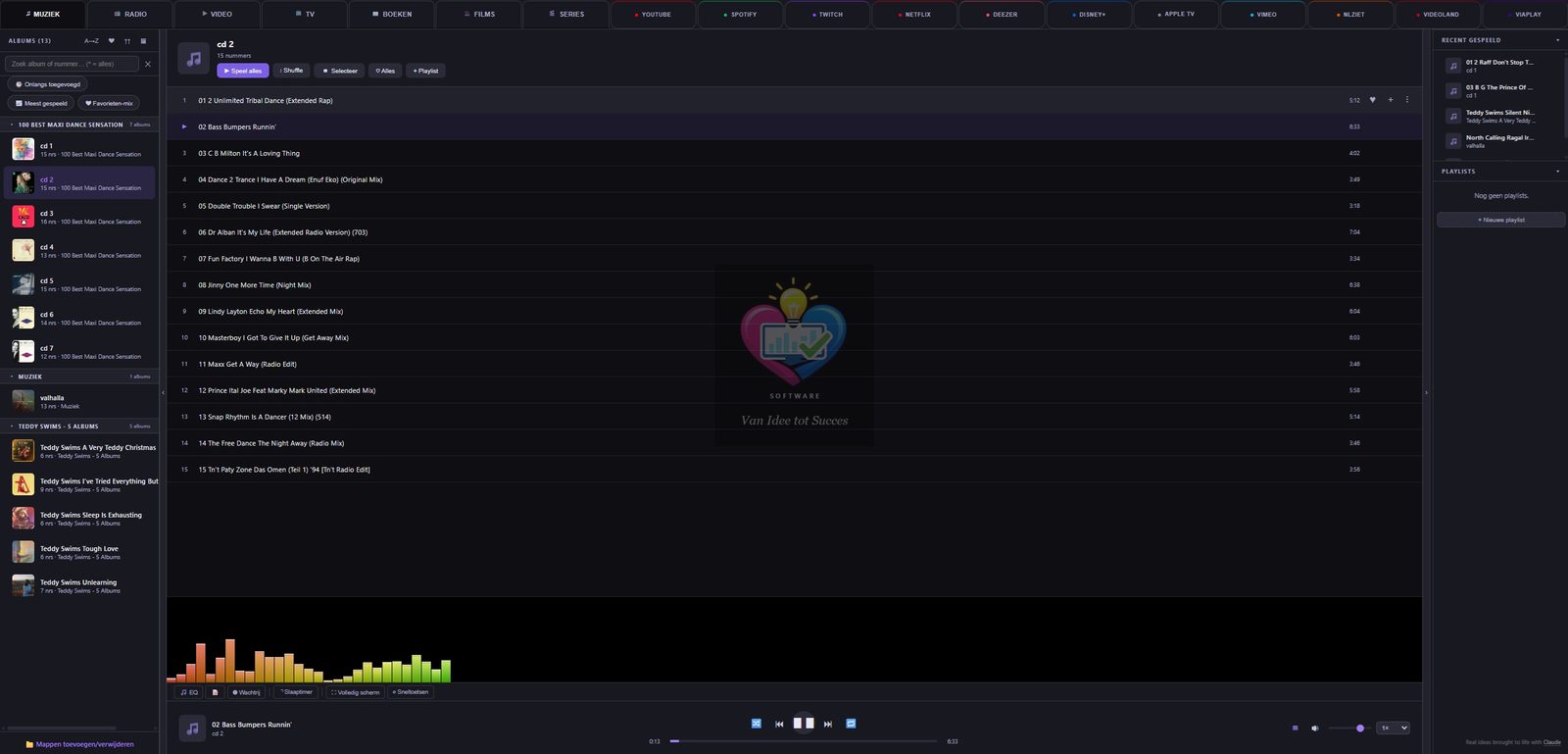
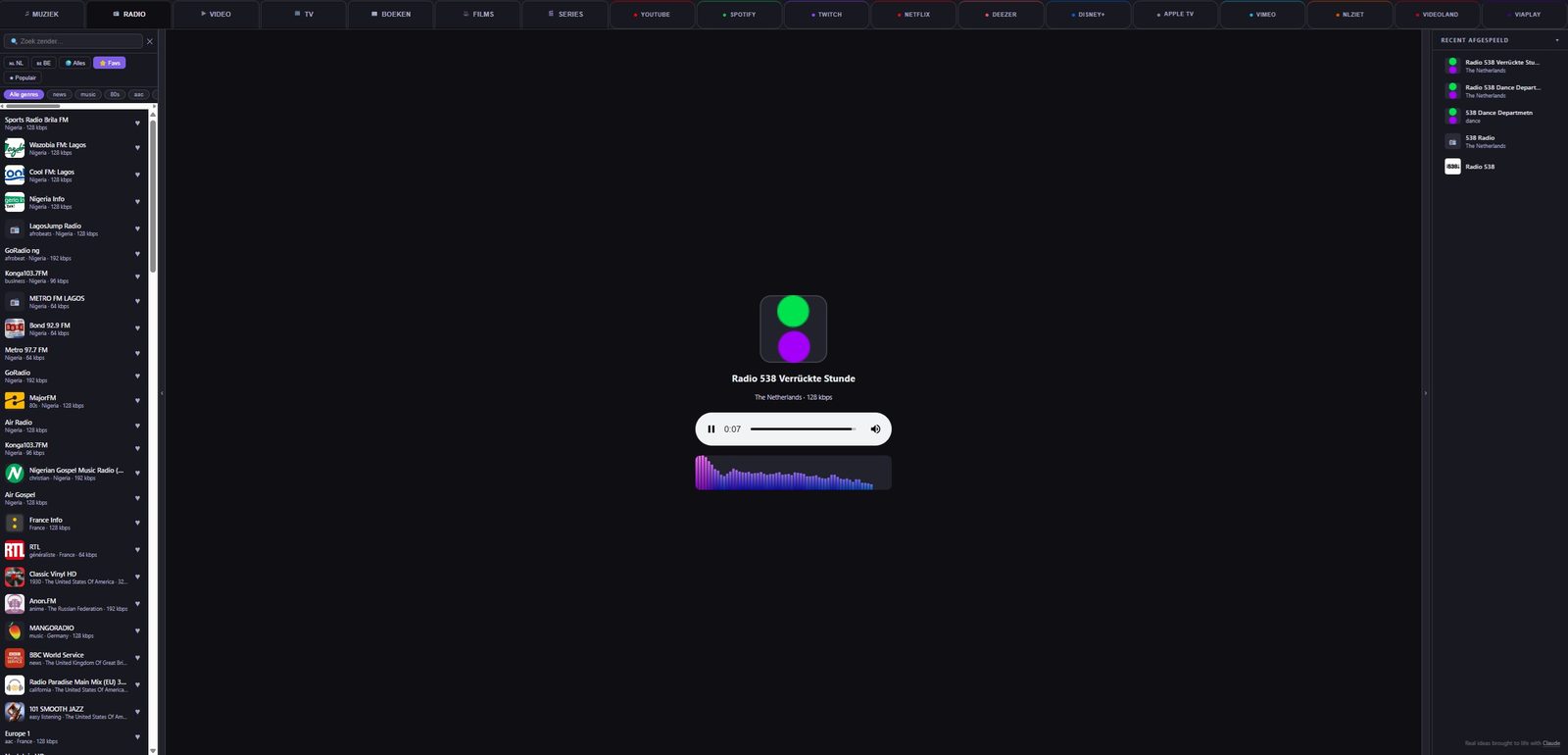
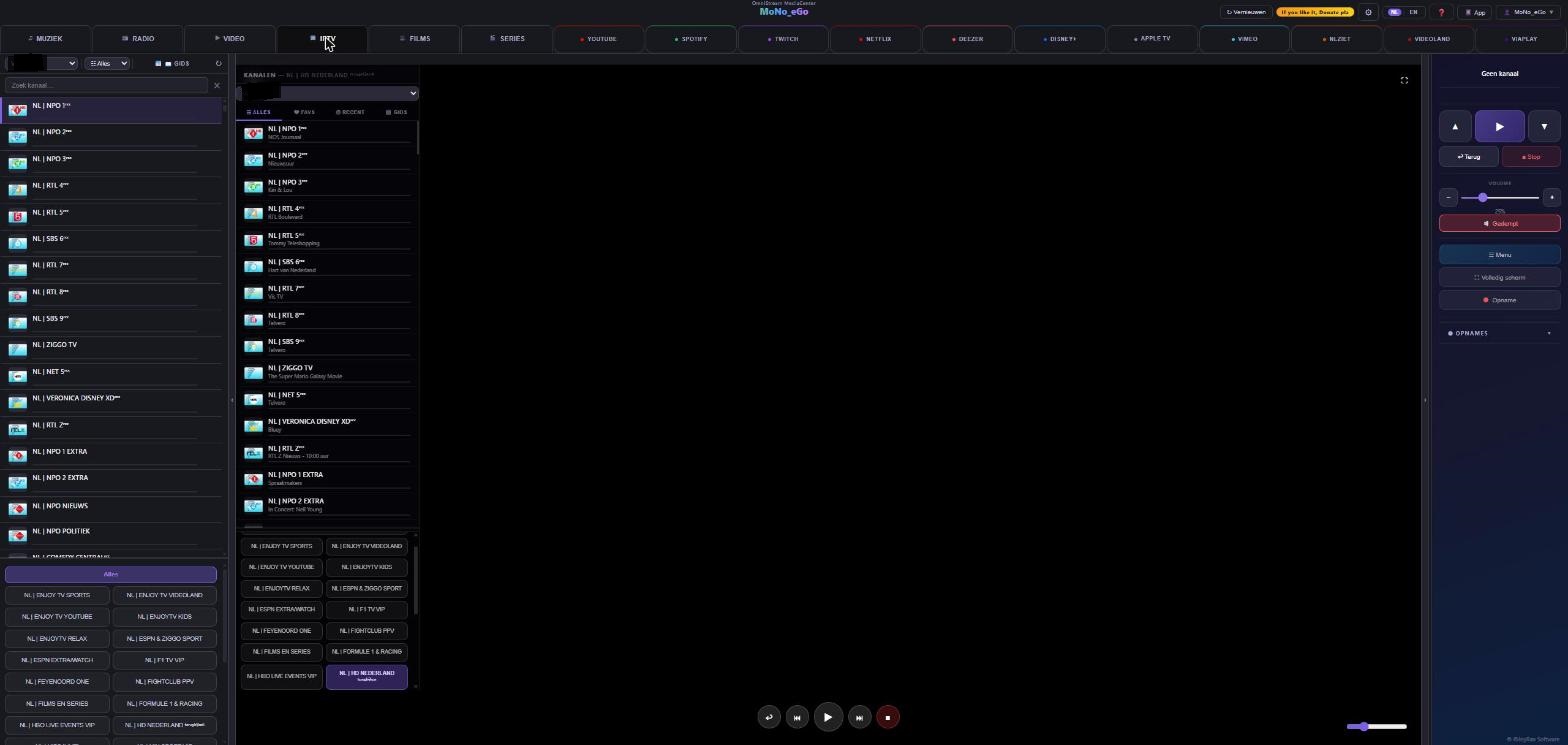
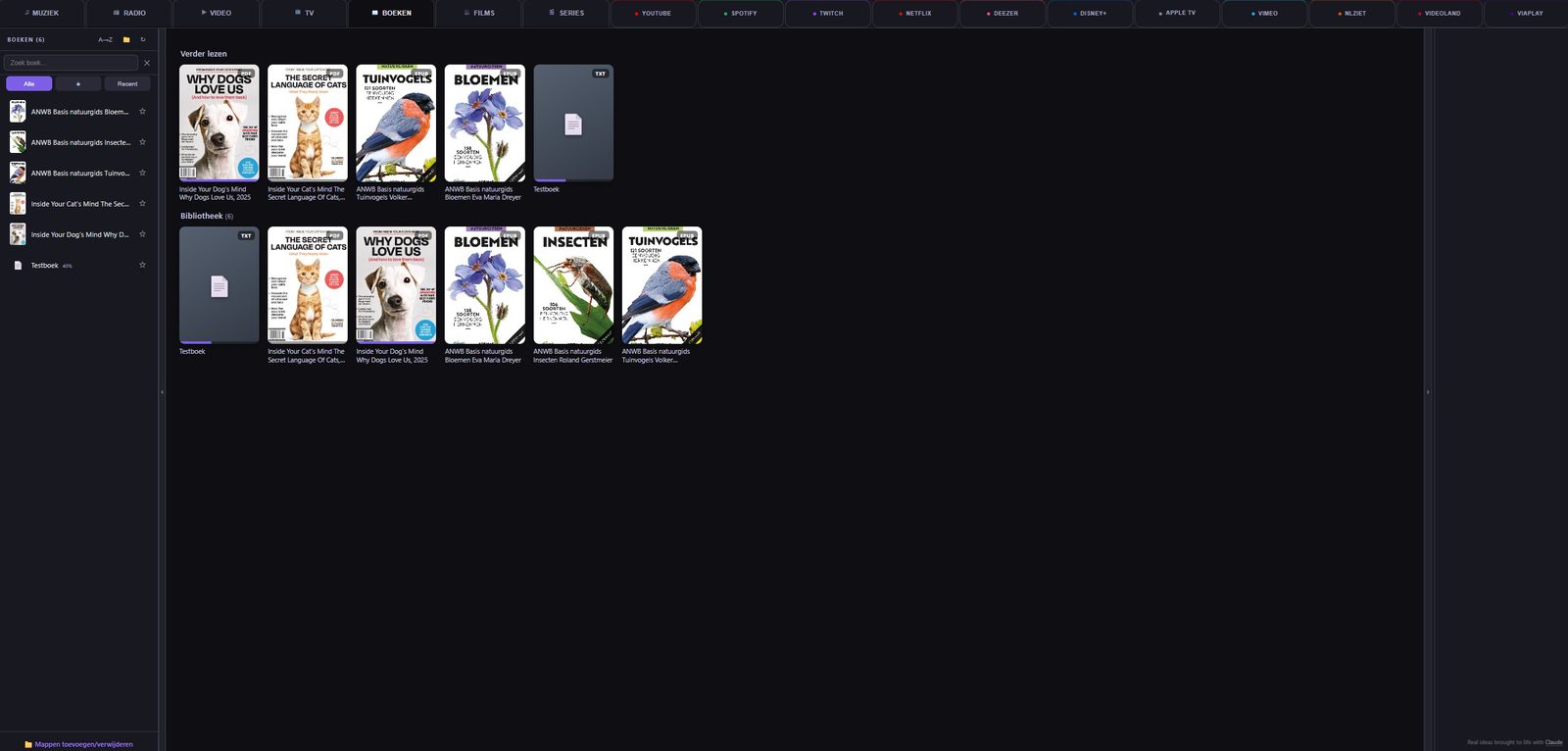
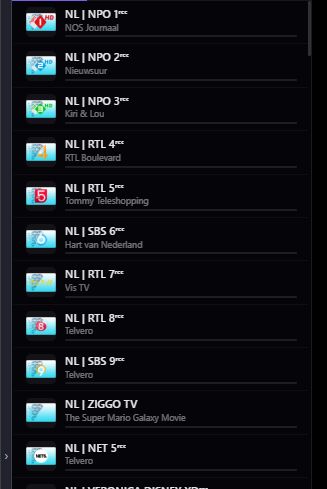
Click an image for the full view — this is how it looks at your place too.
Legal TV services only
You watch via your own subscription. We do not supply television.
OmniStream is a media player that runs on your own computer. The software only supports connections to legal TV services you have a subscription to yourself. For Odido, Ziggo, NPO and KPN there is a ready-made connection; if your provider uses an M3U playlist or Xtream Codes — and most do — you fill in those details and it works just as well. You log in with your own account details and watch exactly what your own subscription allows, neatly bundled with the programme guide, favourites and your own music and video files.
What we explicitly do not do: we do not supply television channels, films, series or music, nor do we sell access to them. We offer no illegal or unauthorised streams, no pre-configured media boxes and no third-party subscriptions. You only pay us for the software; you obtain your TV subscription directly from your own provider.
How it works
Install, connect sources, watch.
- Install on Windows The installer sets up OmniStream as a service and can arrange firewall/autostart right away.
- Create the administrator On first start you choose an admin name and PIN. After that you set up users, folders and providers.
- Connect your sources Use the login details of your own TV subscription and your own media folders.
- Open from any device Go via a browser to the server PC: on localhost or via the local IP address within the network.
Free vs Paid
Free to try. Paid for the full media hub.
Free and Paid run the same software; a licence key removes the limits. The limit of 15 profiles still applies with a licence — each user runs its own caches and connections.
Frequently asked questions
Frequently asked questions
Does OmniStream supply TV channels or streams?
No. OmniStream does not supply television, films or music itself, nor does it sell access to them. You connect your own, legal subscription — at Odido, Ziggo, NPO, KPN or another provider — and your own media files. We offer no illegal streams and no media boxes.
Do I need to install anything on my phone or tablet?
No. The server runs on Windows. Other devices open OmniStream via a browser within the network.
Can I decide per user what is visible?
Yes. Modules and permissions can be set per user. Favourites, history and preferences are stored separately.
What is the difference between Free and Paid?
Free is meant for testing with limits. Paid is meant for daily use with more users, providers, guide features, recordings and library space.
The Kiosk or Raspberry Pi installation stops with an error on a reused disk.
If you put the Kiosk ISO or the Pi image on a disk or SD card that previously held an operating system, the installer may stop with an error about the disk layout (for example block probe fail). That is not a fault: it trips over remnants of the previous installation. The solution is to wipe the disk completely first.
The easiest way is via a Windows PC. Connect the disk, open Command Prompt as administrator and type diskpart. Then in sequence: list disk (find the right disk by its size), select disk X (X = the number of that disk), clean and exit. Note: clean wipes the chosen disk irreversibly — so double-check you do not select your Windows disk. Reconnect the disk afterwards and start the installation again; it now runs through fine.
Updating in the app fails on Windows. What now?
If OmniStream runs on Windows as a background service, that service may — depending on the chosen service account — be unable to install programs, so updating from the admin screen fails. In that case update via the OmniStream icon at the bottom right of the taskbar (the system tray): right-click → Update. That runs in your own session, where Windows can ask for permission, and simply installs the new version.